Finalize & Publish
Click Finalize Character to open Review & Finalize, give your character an identity, and save.
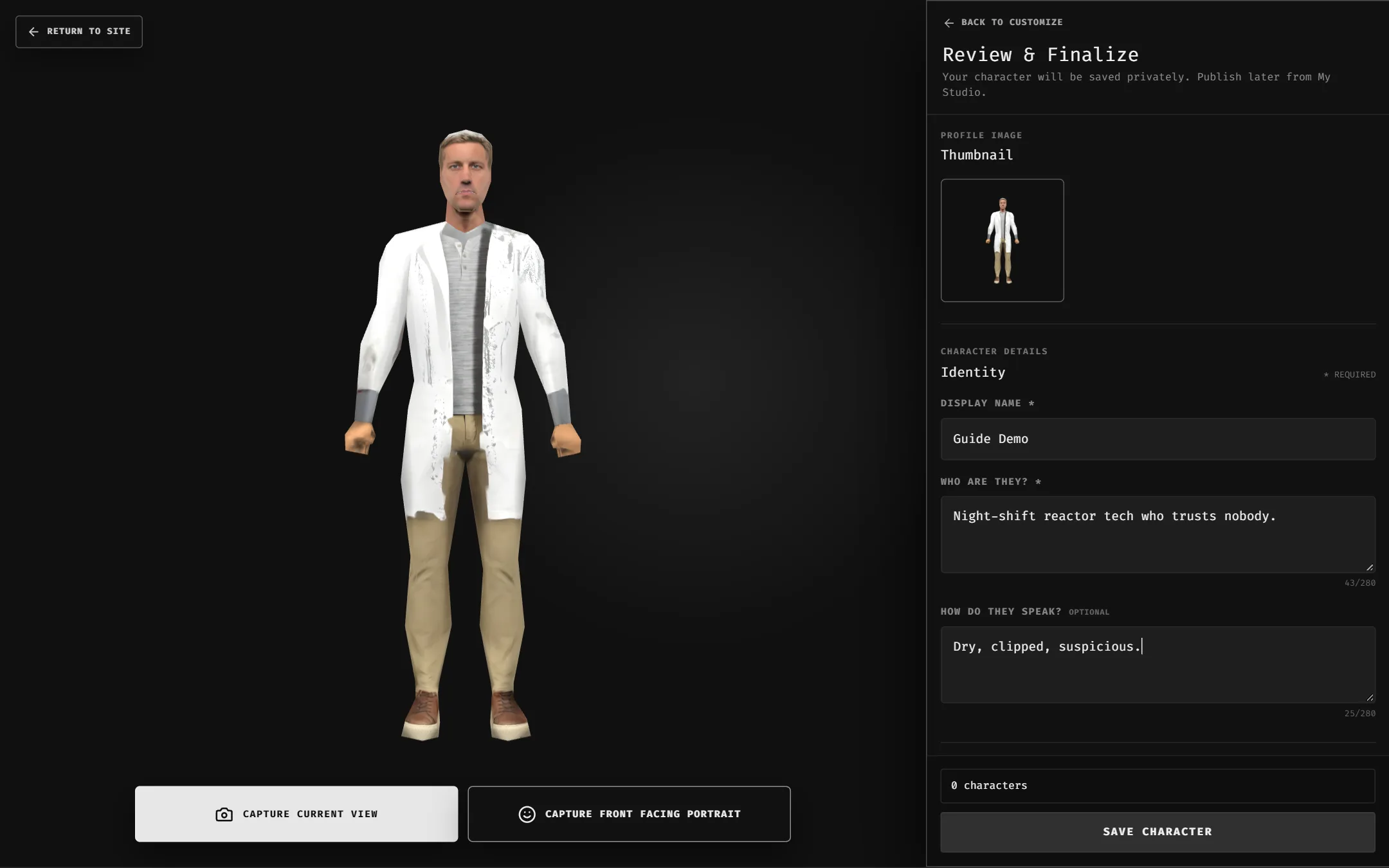
Identity
- Thumbnail: frame the preview, then Capture Current View or Capture Front Facing Portrait.
- Display Name: 2–24 letters, numbers, spaces, apostrophes or hyphens.
- Who are they? Required, 280 characters max. Shapes how they act on stream.
- How do they speak? Optional, 280 max. Tone and speech style.
Save, publish, spawn
- Save Character stores it privately and starts rendering its images.
- When images finish, Publish makes it public in the Gallery. You can also publish later from My Studio.
- Use its Spawn ID in a scene:
!topic Toby#1 explains the microwave.
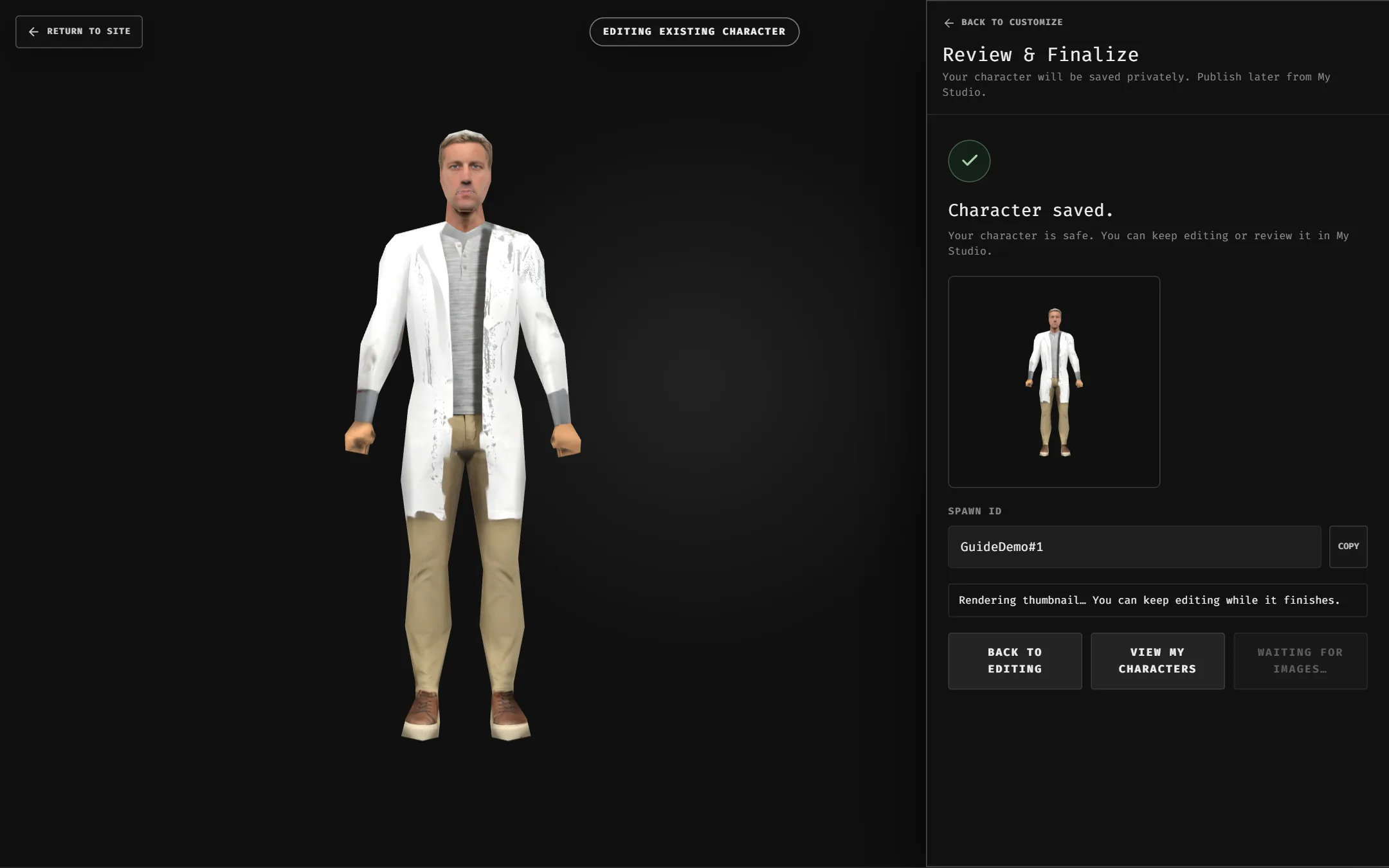
Spawn IDs are the first three words of the name plus a number, e.g. Toby#1.
Renaming gives a new Spawn ID. The old one stops working.
Only published characters can spawn on stream.
Item Workshop
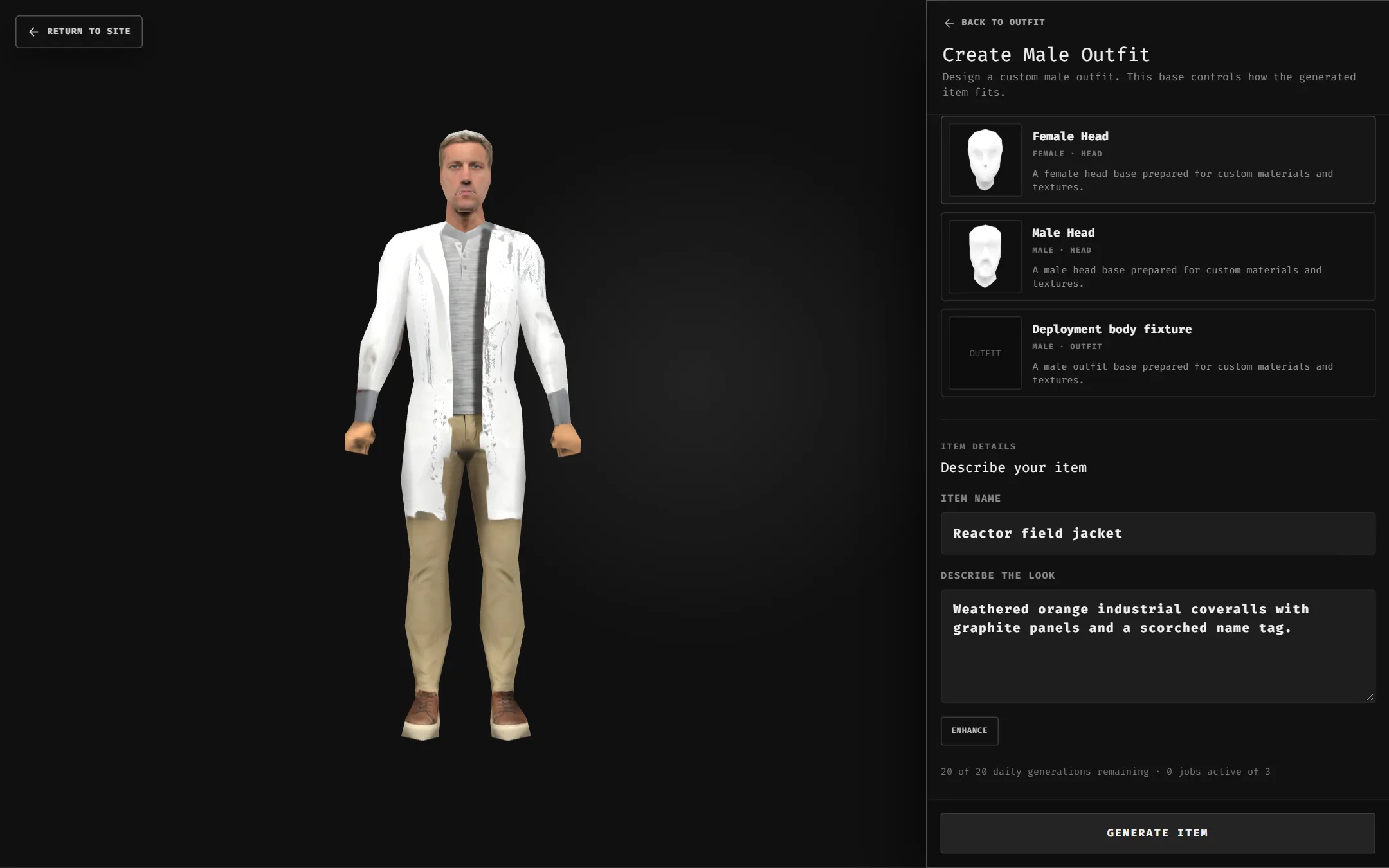
- Create New Head / Outfit: choose a base object, name it, describe the look (600 max), then generate. Finished items land in your wardrobe.
- For voices, see Custom Voices.
Editing later
Open a character from My Studio and click Edit. The footer shows Unsaved changes until you update. Delete from the character's page (permanent).
Troubleshooting
- Publish says “Waiting for images…”: rendering is still running. Keep editing; it finishes in the background.
- “Preview is still loading”: wait for the 3D model to appear before capturing a thumbnail.
- “No Spawn IDs remain”: that name is used up. Change the Display Name.
- Voice preview is silent: your browser blocked autoplay. Select the voice again.
- “Could not load wardrobe”: hit Retry, or reload the page.