Custom Voices
Make a voice from a text description or clone one from a short audio clip. Kept voices show up in the Voice tab marked Yours.
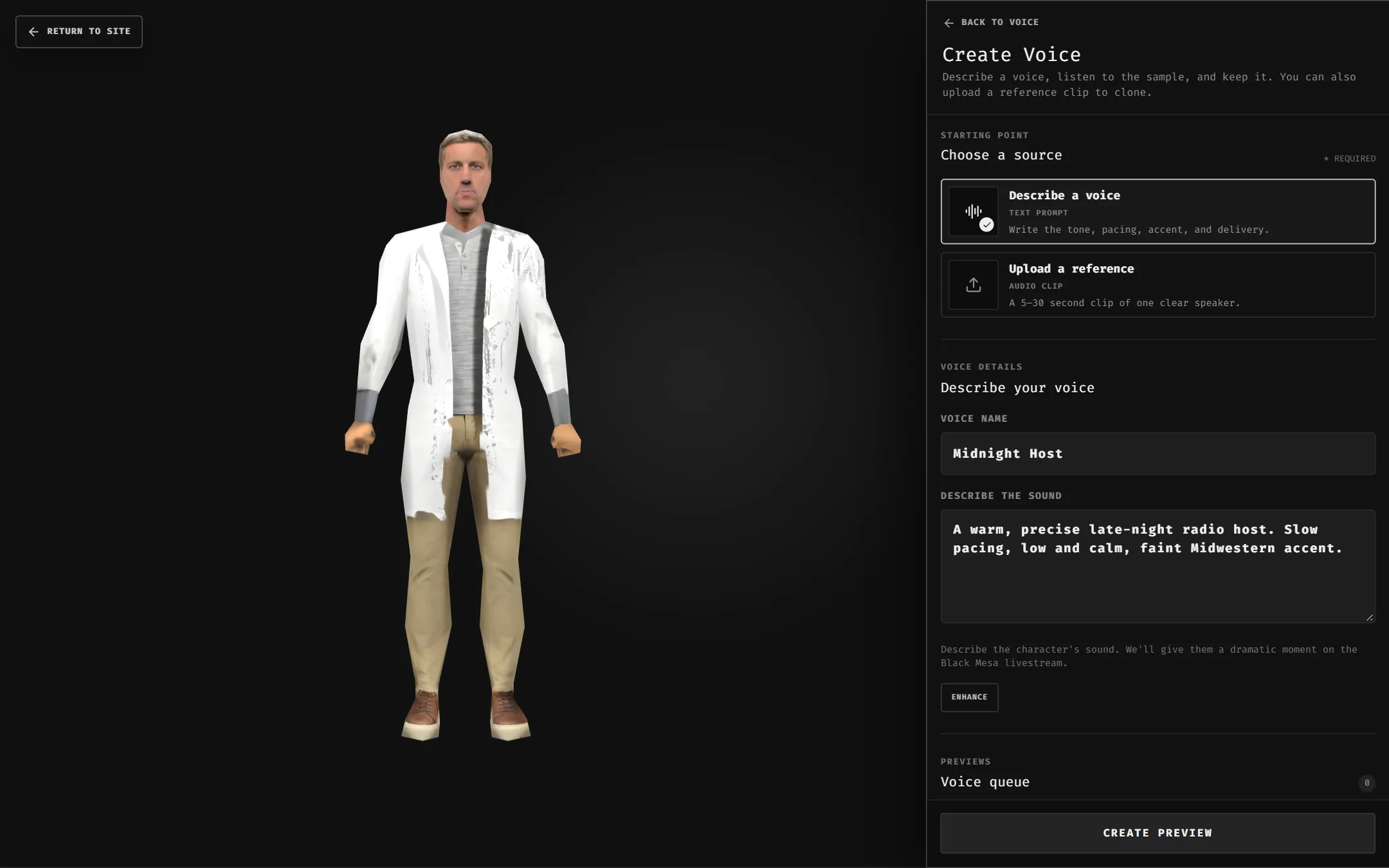
Describe a voice
- In the Voice tab, click Create New Voice (or go to Voices → Create).
- Name it, then describe the sound: tone, pacing, accent, delivery.
- Optional: Enhance expands your description into editable voice, performance and sample-dialogue fields.
- Create Preview. The sample lands in the voice queue, usually in under a minute.
- Listen, then Keep it or Reroll sample for another take.
Clone from a clip
- Choose Upload a reference.
- Add a WAV, FLAC or MP3: 5–30 seconds, up to 25 MB.
- Tick the rights and consent box, then Create Preview.
- Listen to the cloned preview, then Keep or Discard.
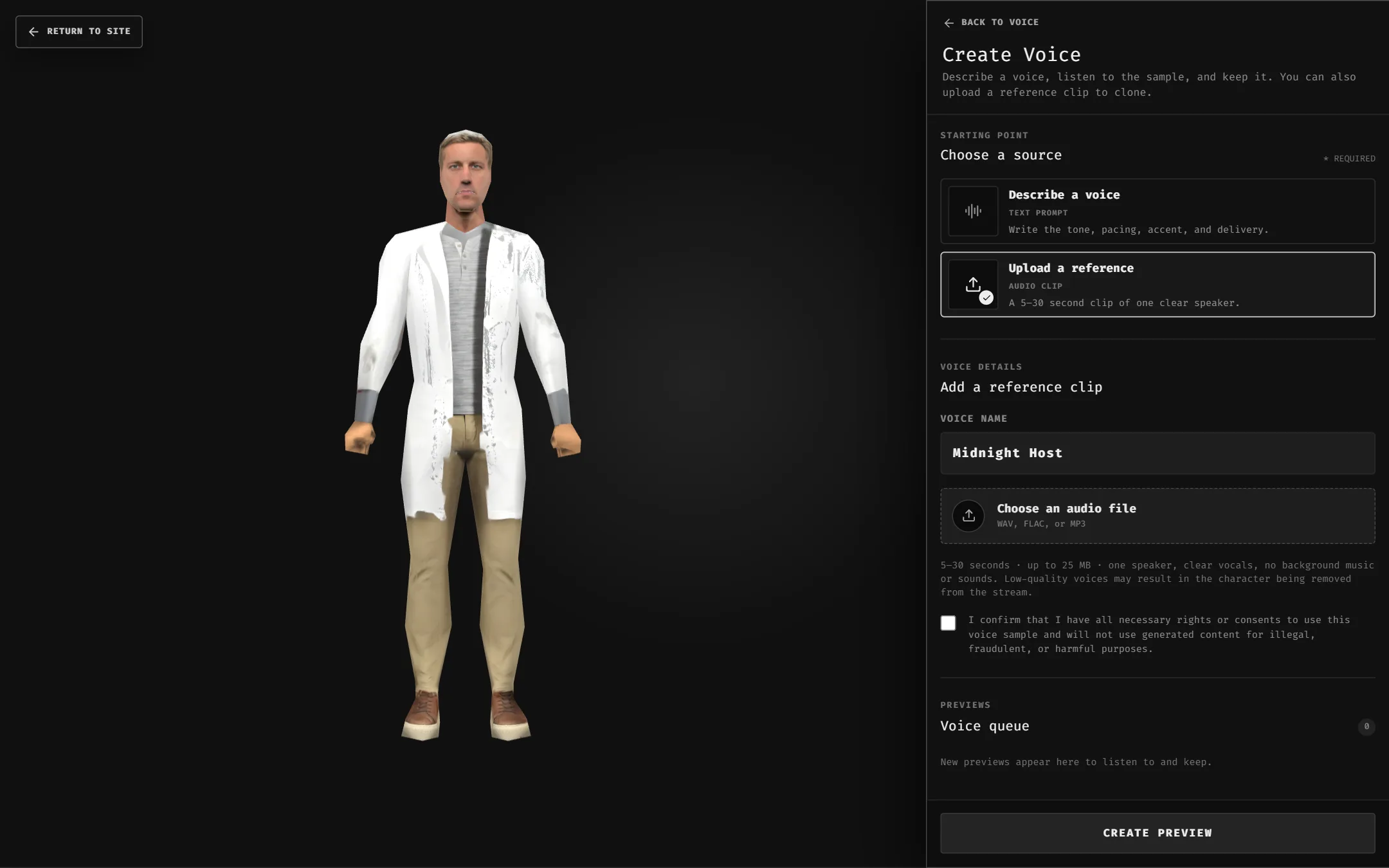
One speaker, clear vocals, no music or background sounds.
Only clone voices you have the rights or consent to use.
Low-quality voices may get the character removed from the stream.
Good to know
- Inside the creator, keeping a voice also equips it and returns you to your character.
- If a voice fails, open it under Needs Action to retry or discard.
- Manage everything you've made in My Voices.